

Same questions. Six completely different quizzes.
A quiz can be a relaxed practice round, a strict class test, a fast game or homework with a deadline — with exactly the same questions. These are the six types of quizzes teachers use, what each one changes, and how to pick the right one in one tap. Then print the same questions as an exam paper.
Practice quiz
No timer, go back any time, retake as often as you like. The score and every right answer appear the moment students submit — so mistakes turn into learning.
Test
Timed, one try, no going back. Students see only “Submitted” until you announce the results — or results come out on their own when the quiz ends.
Speed drill
A timed quiz game: every answer flashes right or wrong at once, faster answers earn more points, and students can play again.
Homework
No timer, go back freely, one try. Results appear automatically when the quiz closes — set the deadline and let it run.
Survey
No score at all: students just answer and you see every response. Perfect for a student feedback survey at the end of a unit.
Hand-marked
For short answers you want to read yourself. Nothing is scored until you mark each answer and announce the results.
Pick a type, write your questions, share a code.
Free for teachers and students — no ads, no credit card.
Which type of quiz do you need? Answer four questions.
This is exactly what Quizoma asks when you tap Help me choose:
Will you mark the answers yourself?
Yes → Hand-marked. No → keep going.
Is it opinions, not right answers?
Yes → Survey. No → keep going.
When should students see their score?
By a deadline → Homework. When you decide → Test. Straight away → keep going.
Should it feel like a game?
Yes → Speed drill. No → Practice quiz.
Compare the types of quizzes side by side
| Type of quiz | Timer | Go back | Retakes | Students see the score |
|---|---|---|---|---|
| Practice | — | ✓ | ✓ | Straight away, with the right answers |
| Test | ✓ | — | — | When you announce results |
| Speed drill | ✓ | — | ✓ | Straight away; faster answers score more |
| Homework | — | ✓ | — | Automatically when the quiz ends |
| Survey | — | ✓ | — | No score — you see every answer |
| Hand-marked | — | ✓ | — | After you mark and announce |
Every type of quiz can also be a printed paper: make it and print it in 4 steps
- 1
Make your quiz
Type your questions, import a .txt or .csv file, or start from a free template — multiple choice, true/false, fill in the blanks, short answer and put in order. Sign in with Google once; it is free.
- 2
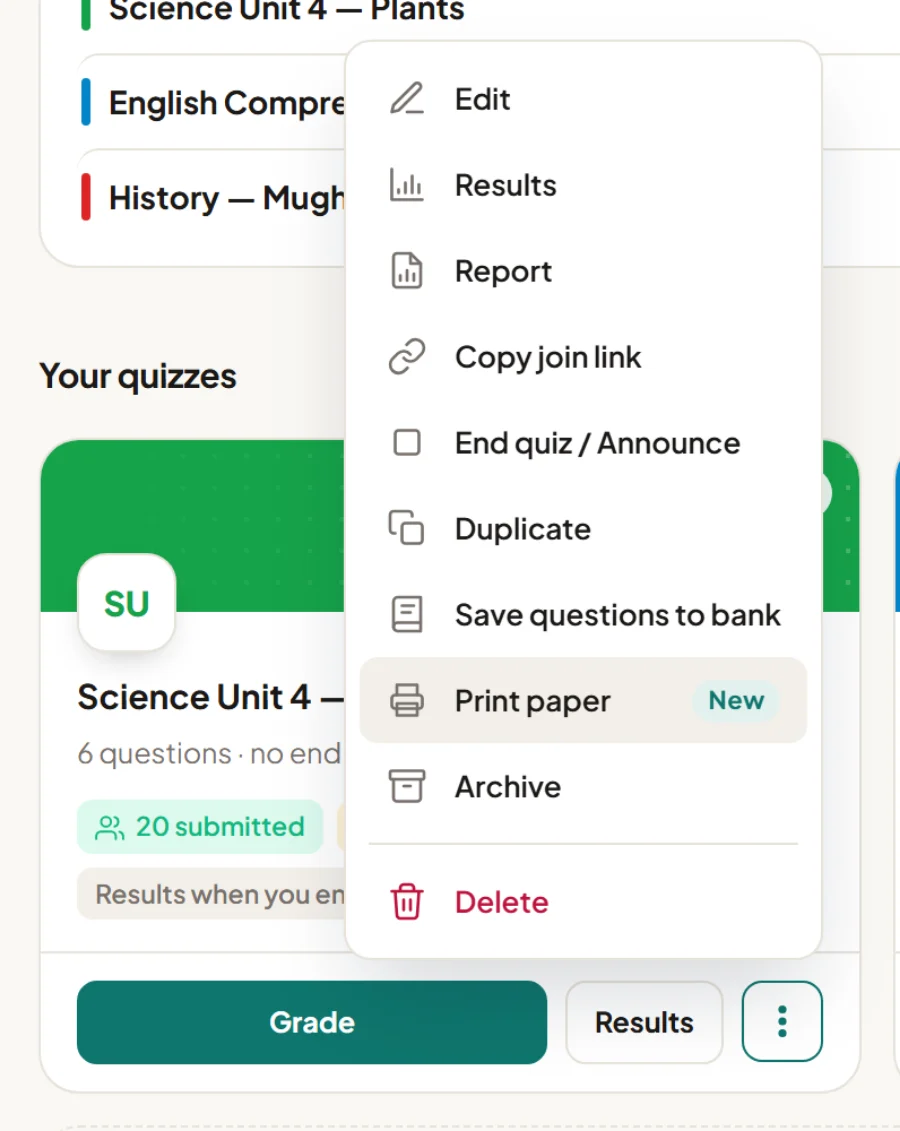
Open “Print paper”
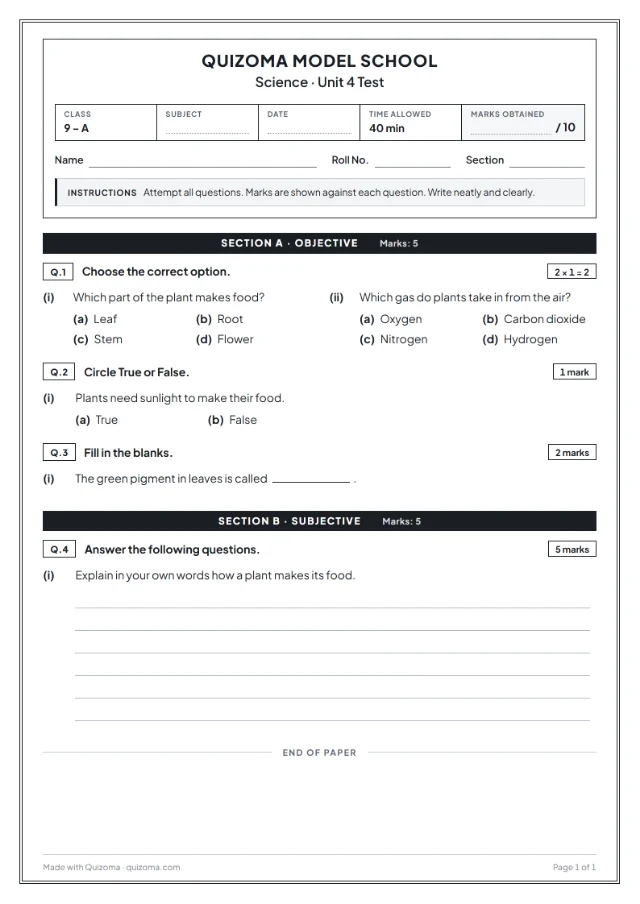
On your Quizoma Studio dashboard, open the ⋮ menu on any quiz and choose Print paper. Already inside the quiz editor? Press the Print button at the top — it prints what you see, even before you save.
- 3
Choose how the paper looks
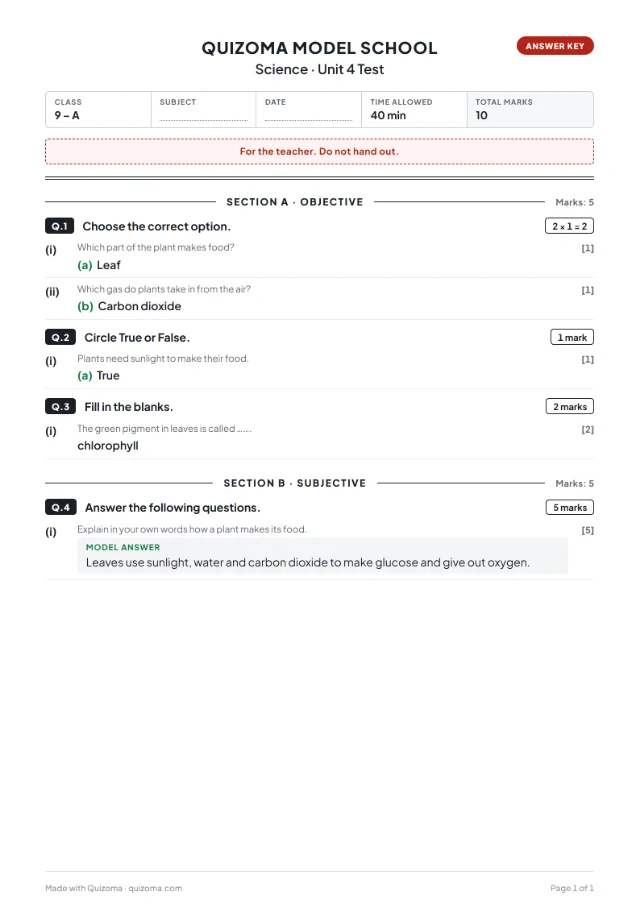
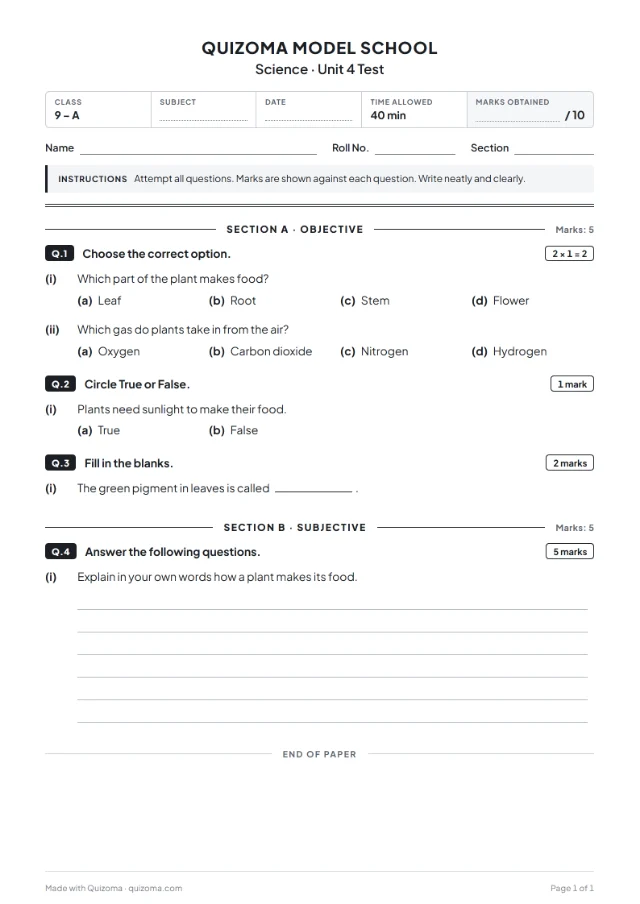
Add your school name and logo, then pick a design, the paper language (14 to choose from), sections or a ruled table, versions A–D, a watermark and an answer-key page. The preview on the right updates as you click.
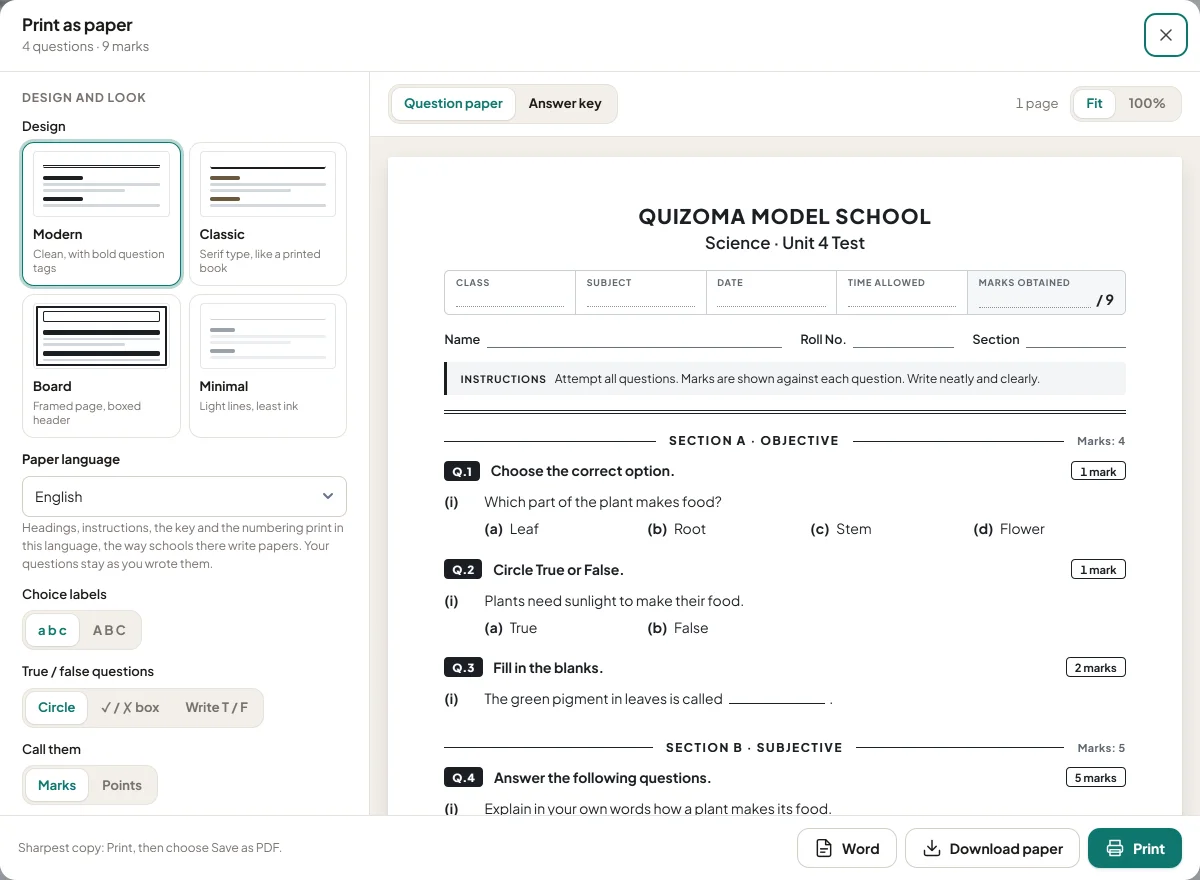
- 4
Print it or download it
🖨️PrintStraight from the browser to your printer📄PDFThe paper, and the answer key as its own file📝WordAn editable .docx to change afterwardsGiving the test on paper instead of online? Pick Test online for marking, and print the same questions as a paper for the exam hall — one set of questions, both ways.
A type of quiz is a starting point, not a lock
Each rule — question numbers, the timer, a reading time before each question, instant right/wrong, going back, showing the score, retakes, partial credit, a bonus for fast answers and marking by hand — is its own switch with an ⓘ that explains it. Once students have taken the quiz its rules lock, so everyone is scored the same way; duplicate it to make a new version.
By default an account holds 10 quizzes of up to 20 questions each. Everyone signs in with a Google account. Quizoma Studio (the browser version) is in beta, and the Android app is free on Google Play from 1 November 2026.
Questions
Six: Practice (retakes, instant answers), Test (timed, one try, results when you announce), Speed drill (timed game, faster answers score more), Homework (due by a date), Survey (opinions, no score) and Hand-marked (written answers you mark yourself).
A practice quiz has no timer, lets students go back and retake it, and shows the score and right answers at once. A test is timed, allows one try with no going back, and shows only “Submitted” until you announce the results.
Yes. Test and Speed drill turn the timer on, and every question can have its own time limit. You can switch the timer on for any other type too.
Yes. Open the quiz's menu in Quizoma Studio and choose Print paper to get an exam paper with a separate answer key, as a PDF or an editable Word file.
In Practice and Speed drill they see their score and the right answers as soon as they submit. In Test, Homework and Hand-marked they see them when results are released.
Yes, until someone takes it. After that the rules are locked so everyone is scored the same way; duplicate the quiz to make a new version.
Yes. Every type of quiz is free, with no ads and no in-app purchases.