

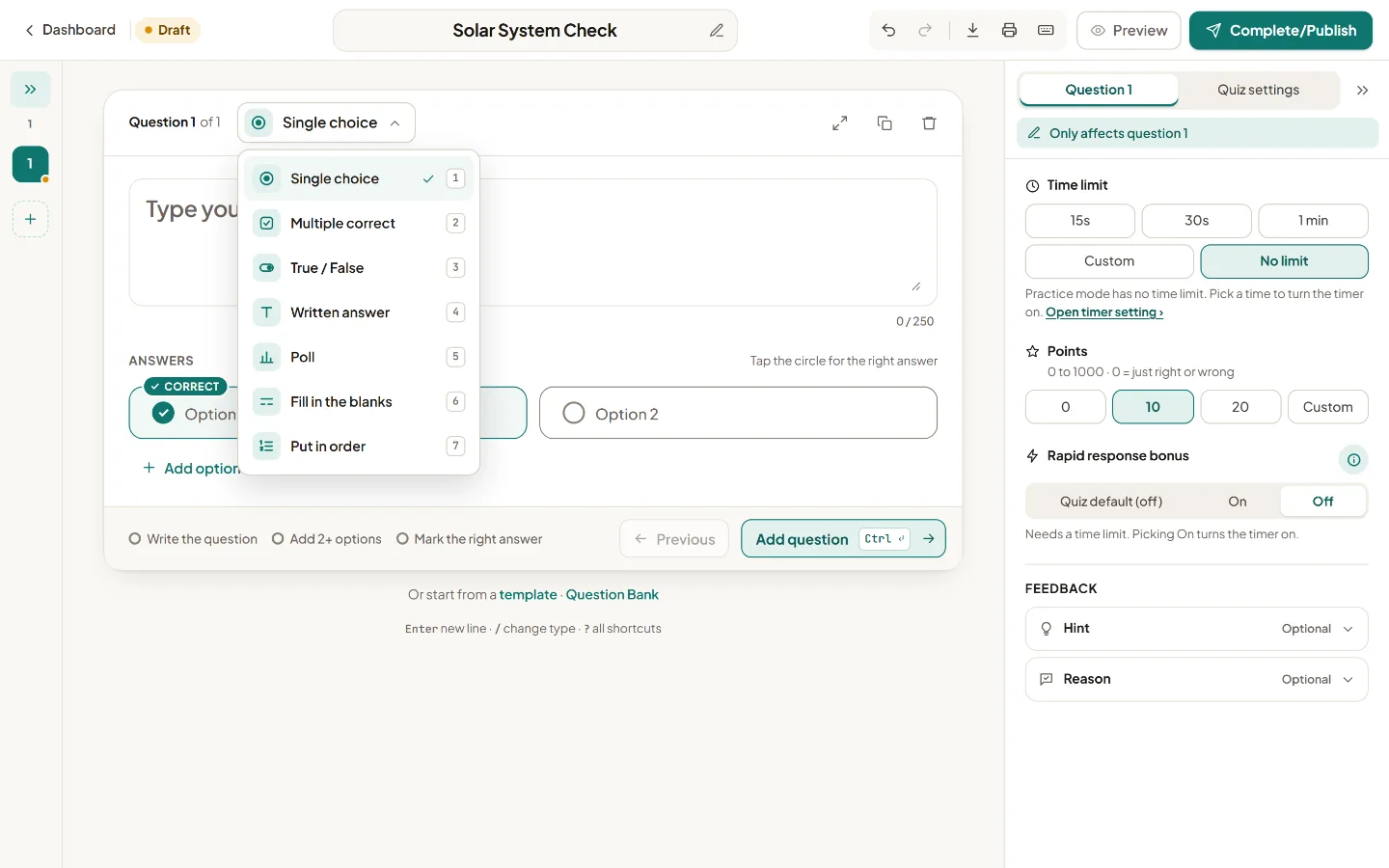
A useful multiple choice quiz tells you what students understand and what needs another explanation. Start with the learning goal, write a question with one clear best answer, then choose how the quiz should run.
This guide shows how to make a multiple choice quiz in Quizoma, from writing the options to reviewing the results. You write the questions yourself; Quizoma is not an AI question generator. To start with an existing question set instead, browse the free quiz templates.
1. Write a question with one clear best answer
Choose one thing you want to check. For a biology lesson, “identify the process that uses light to make glucose” is more useful than “test plants.” Keep the question focused enough that a student who knows the topic can answer before reading the options.
Which process uses light energy to make glucose in plants?
Why it works: the question asks about one process. The options name processes, so grammar and answer length give fewer clues. Respiration is a useful distractor if students confuse making glucose with releasing energy from it.
Compare that with “What do plants do?” A student could reasonably answer “grow,” “respire” or “make food.” More than one defensible answer makes it a poor single-choice question, even if you only mark one option as correct.
- Use plausible wrong answers. Pick mistakes students actually make. Random or joke options make guessing easier.
- Keep options distinct. Avoid overlapping answers, unexplained abbreviations and one option that is much more detailed than the rest.
- Use the right format. If several options should count, label the task clearly and use multiple correct. Use a written answer when the reasoning matters more than recognition.
Draft the answer key with the questions, then ask someone else to read them. If they can defend a second answer, revise the wording before publishing.
2. Build the MCQ test in your browser
Working from a word list? The vocabulary quiz maker turns your word and definitions into a single-choice question you can copy into Studio import.
Open Quizoma Studio and sign in with Google or email. Give your quiz a title that tells students the topic, then add a single-choice question. Enter its options and mark the correct one. Add the next question when it is ready.
For questions you already have, Studio can import supported .txt and .csv formats covering single choice, multiple correct and true/false. The MCQ test maker's paste-and-preview tool lets you try a small question set before copying it into Studio import. Copying alone does not save or transfer a quiz.
A free account has a limit on quizzes and on questions per quiz. A quiz can mix question types, but a short topic check does not need every format. Start with the questions that serve your learning goal.
3. Choose feedback, timing and retakes deliberately
A revision quiz and a class test need different settings. Choose a preset as a starting point, then check the switches yourself. Here are two common setups:
| Decision | Revision practice | Class test |
|---|---|---|
| Preset | Practice | Test |
| Feedback | Immediate correctness and scores are on in Practice. | The Test preset hides scores until you announce them. |
| Retakes | Turn on Retake Allowed if students should repeat it; Practice leaves it off by default. | Leave retakes off for one attempt. |
| Timer | Practice starts with timers off. | Test starts with timers on; check each question's time. |
| Going back | Practice starts with going back off; enable it if wanted. | Test also starts with going back off. |
For multiple-correct questions, check Partial Credit: it is on in the Practice preset and off in Test. Do not assume every MCQ gives partial marks. A standard single-choice question has one correct option.
If you add written answers, choose their checking rules too. Exact matching, case-sensitive matching, typo tolerance, keyword coverage and numeric matching serve different purposes. See the worked grading examples; choose manual marking for the whole quiz when the responses need your judgement. For more revision settings, use the practice test guide.
4. Review, publish and share the quiz
Check every question and its correct answer before you publish. A draft is not ready for students to join. Publish when the questions and settings are ready, then share the 6-character quiz code or QR code.
- Check that every single-choice question has exactly one intended correct answer.
- Preview the quiz and check question order, timing and readability on a phone.
- Confirm when students will see scores and whether retakes or going back are allowed.
- Check the join instructions with one device before the class starts.
You can put the code on a board, show the QR on a screen or send the invitation to your class. Explain whether students should start immediately or wait for your instruction. Quizoma also has a question paper generator if the assessment needs a printable paper instead.
5. Check what students need to join
Students open quizoma.com/take, enter the quiz code and sign in with Google or email on the web. They need a working connection to join and submit. There is no browser extension or app installation required for the web flow.
Tell students the expected quiz length and whether they can change an earlier answer. If someone cannot join, check the code, sign-in and connection first. Do not promise an offline browser test; the Android app's connection behavior is covered separately in the offline quiz guide.
6. Read the results, then decide what to teach next
With automatic marking, Quizoma scores supported questions when the attempt is submitted. What students can see depends on the score and release settings you chose. With manual marking on, review and score the answers yourself.
Start with the questions many students missed. If they chose the same wrong option, ask what misunderstanding that option represents. If strong students split between two answers, check whether your question was ambiguous before treating it as a knowledge gap.
Open individual submissions when a written answer deserves a closer look. You can adjust a mark and leave a comment. Export a PDF report when you need a record; avoid judging the lesson from the class average alone.
Ready to turn your questions into a quiz?
Try the maker's paste preview, check the answer key and move to Studio when the questions look right.
Try the MCQ test makerOr start with a science question set →Common questions before you start
Can I make a multiple choice quiz for free?
Yes. Quizoma is currently free, with no advertising while students answer. A free account has a limit on quizzes and on questions per quiz. Quizoma Studio is the browser version.
Do I need AI to write the questions?
No. You can write your own questions in the editor or import a supported question file. Quizoma does not generate the questions for you with AI. A useful question starts with what you want students to understand.
Should every question have four options?
Use as many options as the question needs within the editor's limits. Four is common, but adding a weak distractor just to reach four does not improve the question. Keep one clear best answer for single choice.